 StrikeSight
Help with StrikeSight
Where the tripod goes, how to set up the lane, and answers to common questions. If yours isn't here, email us. We read every message.
Email support
support@strikesight.appThe quickest way to write is Settings › Contact support in the app: it fills in your app version and system version for us.
If a throw was measured wrong, tell us which session and shot, and roughly what happened.
Setting up the tripod
One tripod behind the ball return, between your lane and the next. The app has the same steps built in, under Setting up the tripod, and checks the spot for you before the first throw.
Where it goes
A few feet behind the approach, past the end of the ball return.
Between your lane and the next one, on the side of your bowling hand, so you never block it. The bowler walks up the other side.
Legs fully out, four feet (1.2 m) or higher. Taller is better: the higher the camera, the less the bowler blocks it.
The phone level, turned until the foul line runs straight across the screen.
The whole lane in view, from the foul line to the pins.
The side comes from your Default bowling hand in Settings. Bowling in a group? Put it on the side most of you throw from.
Setting up the lane
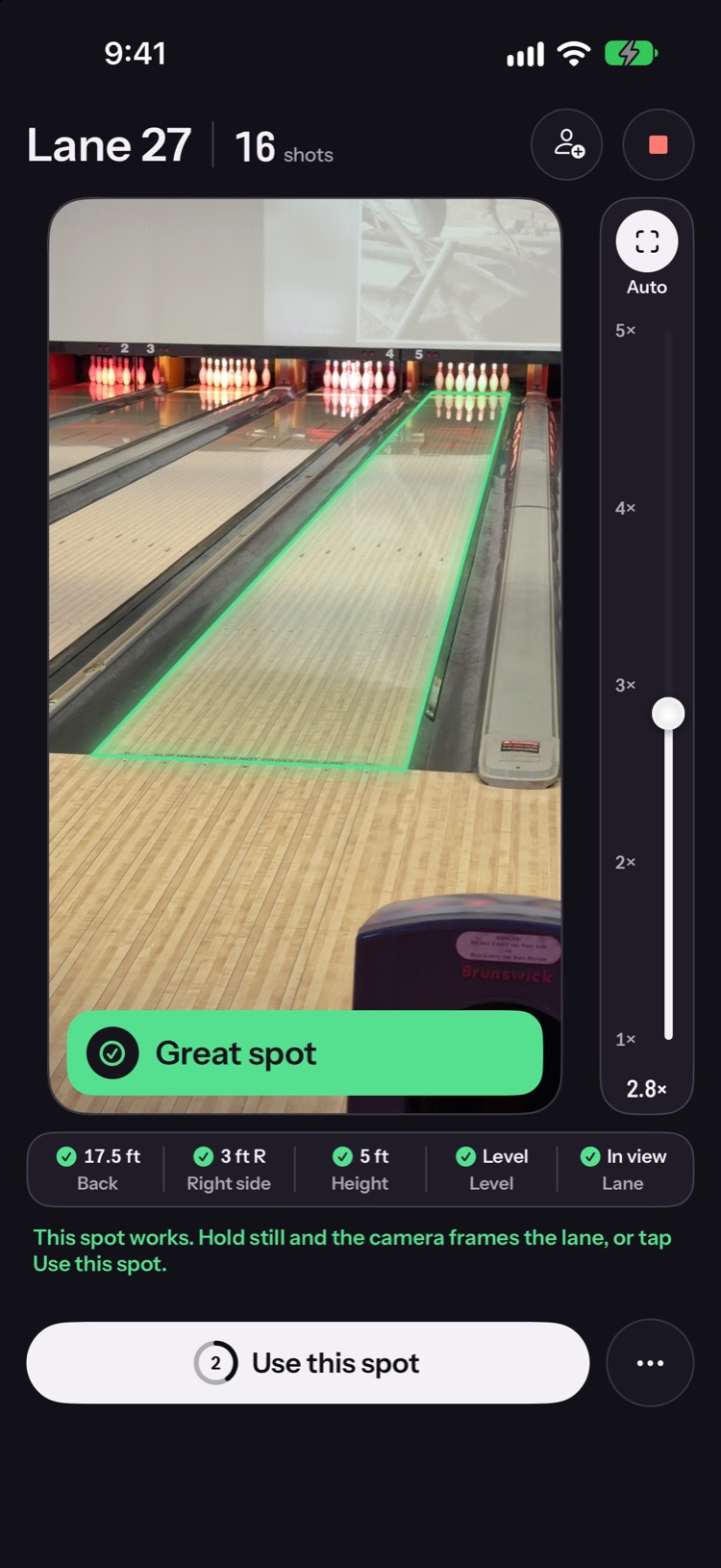
Start a session on the Track tab. The app finds the lane, checks the spot, and zooms in.
If it outlines the wrong lane, tap yours.
Each check turns green as the camera gets there: behind the approach, between lanes, height, level, and the whole lane in view.
Once it's set, leave the phone alone. If it's knocked, the app says so; put it back and re-align.
More on getting the outline right: tips for a good lane setup.
Getting started
What do I need?
An iPhone or Android phone, a phone tripod that reaches about four feet (1.2 m), and a bowling lane. Nothing goes on the ball or the lane. Want a look first? Tap Try a sample session on the Sessions tab (or in Settings, under About and help) to explore a real night of practice, with three replays. It's kept out of your own stats, and Remove sample session takes it away again.
Tips for a good lane setup
- The outline should sit on the gutter edges, from the foul line to the head pin, with the arrows on the arrows.
- The app finds the corners itself, and looks for them again in every throw's clip, so the lane still lines up if the camera turns a little. If it can't find the lane, aim straight down it so both gutters, the foul line and the pins are in view, and raise the phone if the scoring screen hides the foul line.
- On iPhone, if the outline is a little off, tap the … button next to Use this lane, then Adjust corners, and drag a corner onto the gutter edge; a magnifier shows what's underneath.
- Make sure the tripod is steady and nobody will lean on it. Height helps more than anything else.
How accurate are the measurements?
They're measured from video, so they're estimates. Accuracy depends most on the tripod spot, the lane setup and the lighting. Use them for practice. They aren't official numbers.
Throws and measurements
Why wasn't a throw saved?
- If the tripod was knocked, the lane outline no longer matches the lane, and throws stop being saved until you re-align. The app shows a banner when this happens.
- If the app can't find a ball rolling down your lane in a clip, it doesn't keep the clip, so people walking past or a pinsetter cycling don't fill your session with empty throws. You can undo this right away from the notice if it was wrong.
- If the bowler or someone else stood between the camera and the lane for most of the throw, there isn't enough to measure. A taller tripod fixes most of this.
- Very dim lanes, glare, or light shows projected on the lane can stop a clip from being measured. The app tells you when this happens.
Something else? Email us with the session and roughly when the throw was.
Why is there no rev rate on some throws?
Rev rate is read by following markings on the ball as it turns. A ball that looks the same from every side, like a plain solid colour or a very dark ball, has nothing to count the turns by. Two fixes:
- Put a strip of bright tape on the ball, about an inch wide, away from the finger holes. Remove it before league or tournament play.
- Use a ball with more markings, such as a pearl, a swirl or a big logo.
Rev rate is also read most reliably at 120 fps, the default. At 60 fps (Settings) the spin can't always be counted for sure. Rev rate is part of Pro.
Clips and backups
How much space do clips take? What is compression?
Each throw keeps a short video clip so you can replay it. Two settings in Settings › Clip storage keep this in check:
- Limit clip storage (on by default, 4 GB, adjustable from 1 to 64 GB) removes your oldest clips once the limit is reached. You're warned before it gets there, and the session you're bowling is never removed while you bowl. The measurements and lines stay; only the video goes.
- Compress clips re-saves clips at 60 fps in HEVC, about five times smaller. Choose Off, After 7 days (the default) or Right away. Clips are only compressed after they've been measured, so your numbers don't change.
To keep a session's video for good, export it (below). To keep one throw, use Save video on its replay.
How do I back up or move my sessions to a new phone?
Go to Settings › Export all sessions. It makes one folder with every session that you can save to Files, iCloud Drive or a computer. Turn on Include clips to bring the video along (larger, and it takes a while); without it, the export holds stats, lines and thumbnails and is a few megabytes.
To bring it back, on the same phone or a new one, tap Import on the Sessions tab and pick the folder. Sessions already on the phone are updated, not doubled. You can also export a single session from its menu.
Your iPhone's own backup (iCloud or computer) includes your sessions and measurements but not the video clips, which are too large for it. If you sign in to a StrikeSight account, your stats sync to your other phones too, but never your video: export is the way to keep your video safe.
Account, Pro and privacy
Do I need an account?
No. Everything works without one. An account (Settings › Account) only syncs your stats, meaning sessions, throws, lines, balls and guests, between your phones. Your videos, thumbnails and ball photos stay on the phone that made them. You sign in with a 6-digit code we email you; there's no password. Can't find the code? Check your Spam or Junk folder. It comes from sign-in@strikesight.app.
How do I delete my account?
In the app, go to Settings › Account › Delete account. Your account and everything synced to it are deleted from our server straight away, and your other phones are signed out. The sessions on your phone stay until you delete them there. Deleting the account doesn't cancel a subscription; do that in your phone's settings. If you can't open the app, email us from your account's address and we'll delete it for you.
What deletion removes, and what we keep for how long, is in the Privacy Policy.
How do I restore my Pro subscription?
Pro bought on an iPhone comes with your Apple ID and normally appears by itself on every iPhone signed in to the same Apple ID. If your subscription is linked to your StrikeSight account, Pro also works on your other phones signed in to that account. If it doesn't show, open Settings › Restore purchases in the app. Make sure you're signed in to the App Store with the Apple ID you subscribed with.
How do I cancel my subscription?
On iPhone, subscriptions are managed by Apple: open the Settings app, tap your name, then Subscriptions, choose StrikeSight, and tap Cancel Subscription. You can also get there from Settings › Manage subscription inside StrikeSight. A subscription bought on Android is managed in the Play Store app, under Payments & subscriptions.
Cancel at least 24 hours before the renewal date to avoid being charged for the next period. You keep Pro until the end of the period you've paid for. If you cancel during the free trial, you won't be charged. For refunds, use Apple's Report a Problem page; we can't issue refunds ourselves.
Does StrikeSight collect my data?
Without an account, no. The app has no analytics, ads or tracking, and your videos and measurements stay on your phone. With an account, we keep only your email address and your stats, so they sync. Read the Privacy Policy.
Didn't find it? Email support@strikesight.app. If it's about a throw, say which session and shot.